


Add a New Employee in Attendo (formerly Petpooja Payroll)
Introduction If you’ve ever onboarded a new employee manually, you know it’s not fun.There are forms to fill, IDs to verify, and bank details to double-check. Even a small mistake in a PAN or IFSC number can delay salary processing or compliance filings. That’s where Attendo (formerly Petpooja Payroll) steps in.It transforms the entire onboarding
Introduction
If you’ve ever onboarded a new employee manually, you know it’s not fun.
There are forms to fill, IDs to verify, and bank details to double-check. Even a small mistake in a PAN or IFSC number can delay salary processing or compliance filings.
That’s where Attendo (formerly Petpooja Payroll) steps in.
It transforms the entire onboarding process, turning what used to take hours into a smooth, one-minute setup. Whether you’re adding one employee or fifty, HR teams can now complete payroll onboarding without stress or human error.
With automated syncing, real-time compliance checks, and smart data fields, it’s the simplest way to set up new employees.
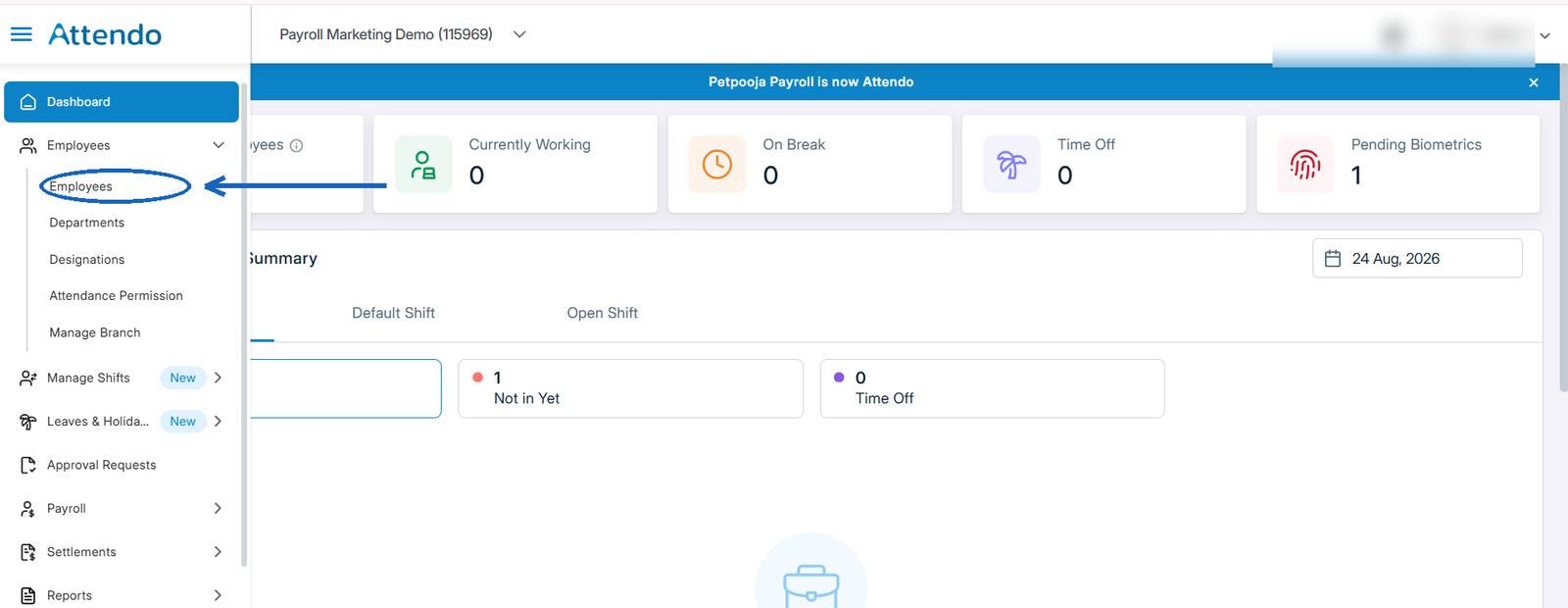
Start from your main Attendo Dashboard.
On the left sidebar, you’ll see the Employees tab, this is your control center for all staff data. One click brings you to the list of existing employees and gives access to the “Add Employee” option.
Why this matters:
No more digging through settings or searching for options. Everything is built for fast access so HRs can jump straight into onboarding.
Step 2: Click “Add Employee”
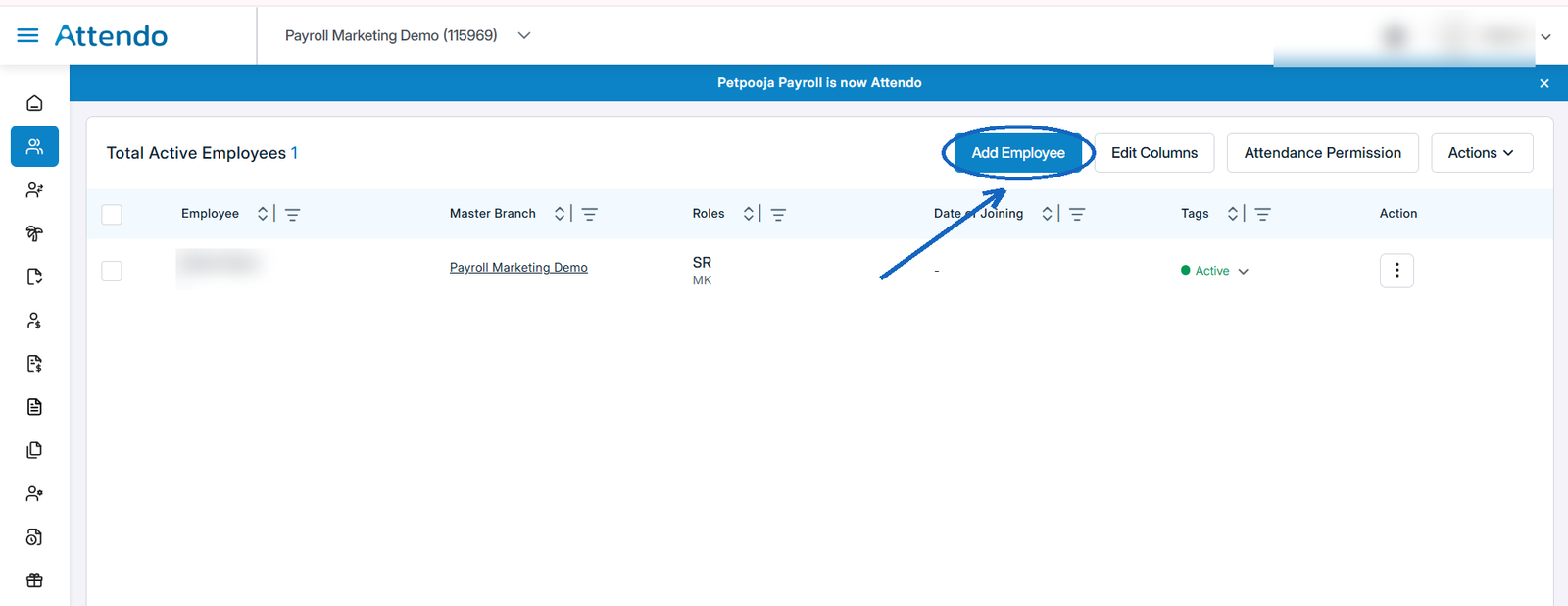
Inside the Employees page, click the Add Employee button on the top right.
A setup window will appear, this is where the magic begins.
Each new entry automatically syncs across attendance, compliance, and salary modules, ensuring zero duplication or data mismatch.
HR benefit:
Real-time sync means once you add an employee, the payroll and compliance modules are instantly updated. You don’t have to re-enter the same data in multiple tabs.
Step 3: Fill in the 7 Key Sections of Employee Setup
Let’s break down what each section includes and why it’s important.
(a) Basic Details
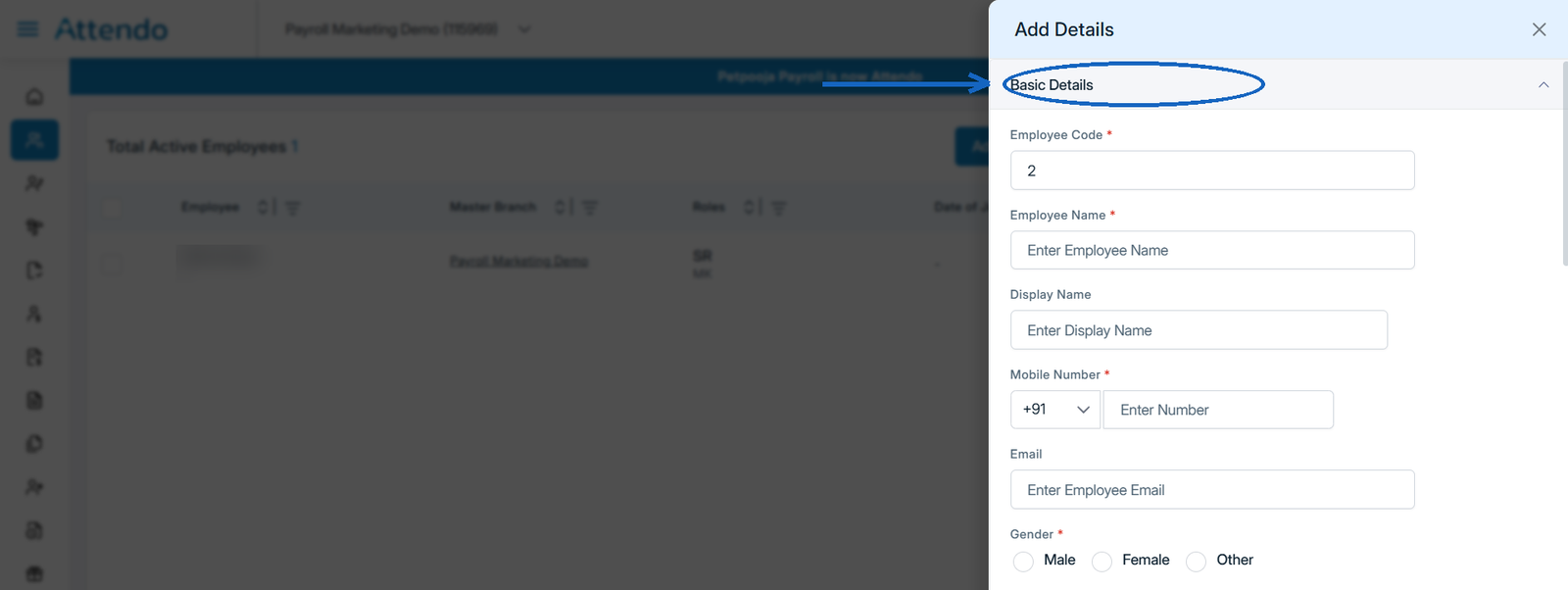
Here’s where you enter essential identity and job information:
- Employee Code
- Employee Name
- Display Name
- Mobile Number
- Gender
- Punch In Branch
Why it matters:
Accurate basic details are the foundation of your payroll system.
They ensure compliance with PF and ESIC laws, help generate payslips correctly, and maintain reliable employee records for audits or reporting.
Pro tip: Standardize employee codes and department names before adding records this helps during bulk uploads.
(b) Salary Details
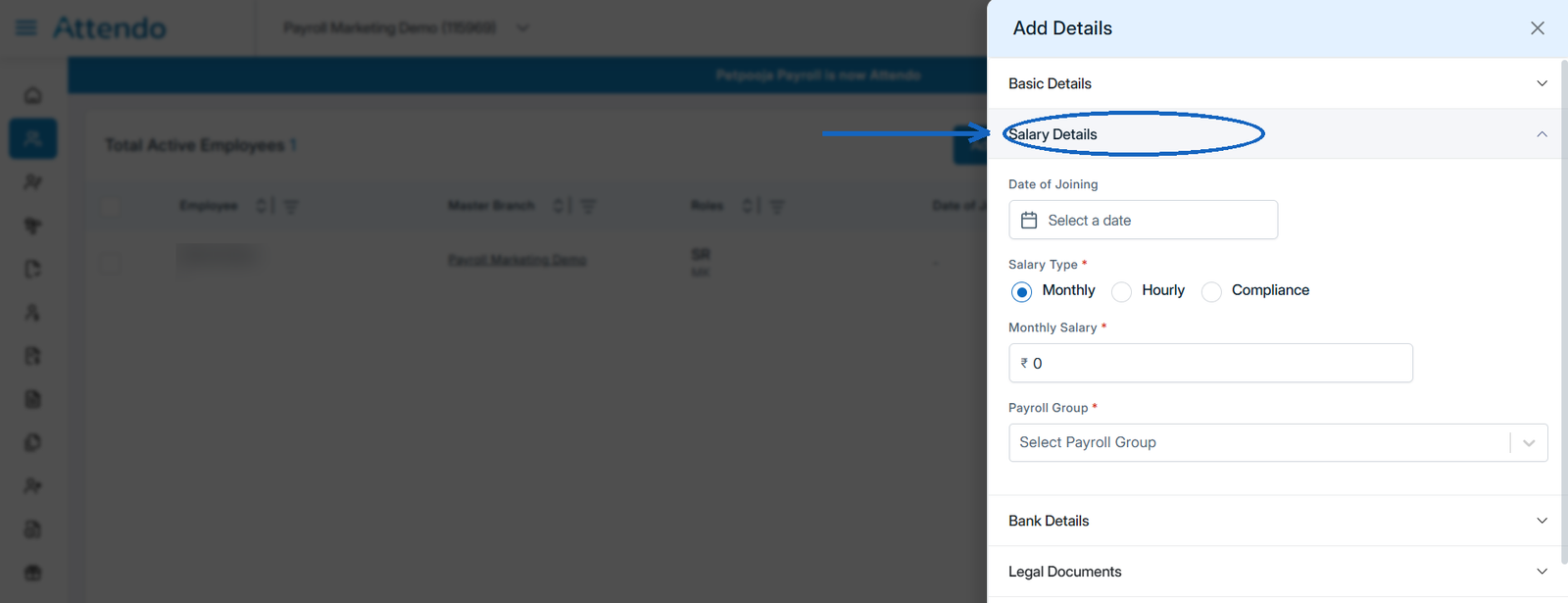
This is where the pay itself is set:
- Date of Joining
- Salary Type (Monthly, Hourly or Compliance)
- Monthly Salary
- Payroll Group
Why it matters:
The salary type decides how Attendo calculates every pay run that follows, and the payroll group ties the employee to the right pay cycle and statutory settings. Get this wrong and the first payslip is wrong.
Pro tip: Set the date of joining accurately. Leave accruals and gratuity both count from it.
(c) Bank Details
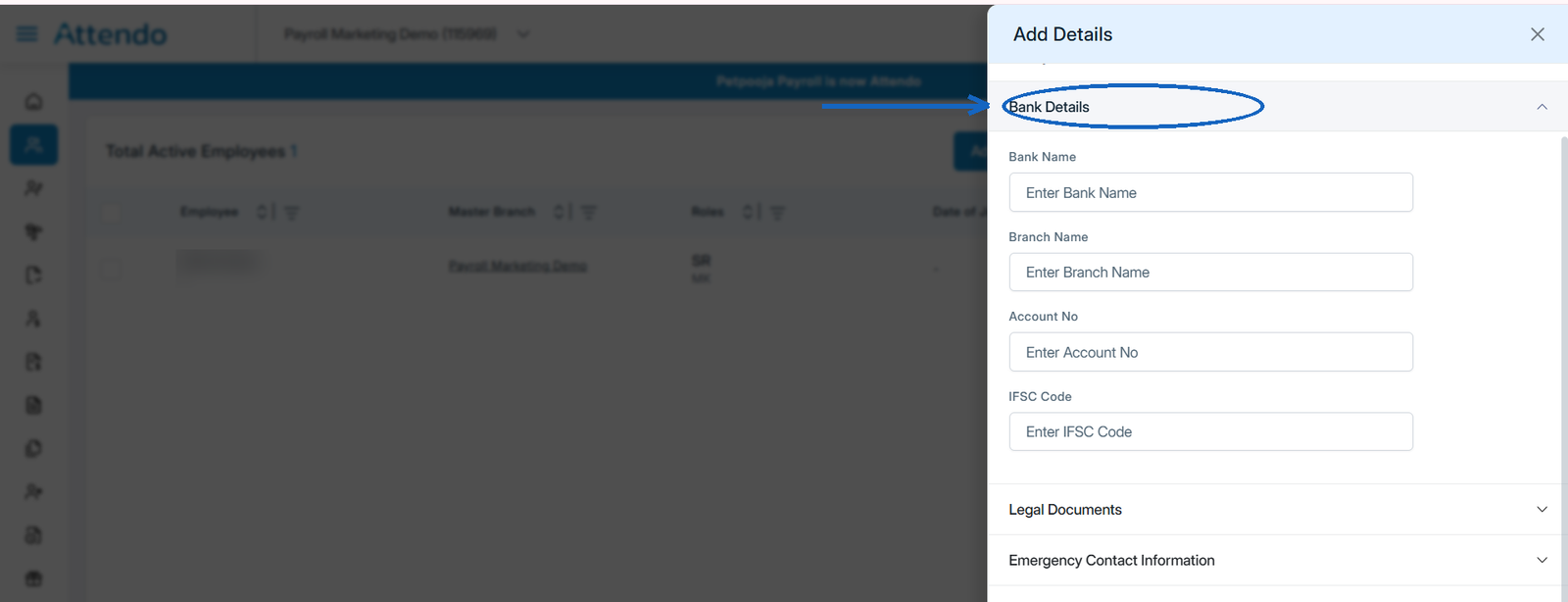
Next, add the salary deposit information:
- Bank Name
- Branch Name
- Account Number
- IFSC Code
Why it matters:
This information enables seamless salary transfers and reduces errors during disbursement.
Attendo validates IFSC formats to ensure every transfer happens on time and to the right account.
Pro tip: Always cross-check the IFSC and account numbers before saving they’re small fields but carry big impact.
(d) Legal Documents
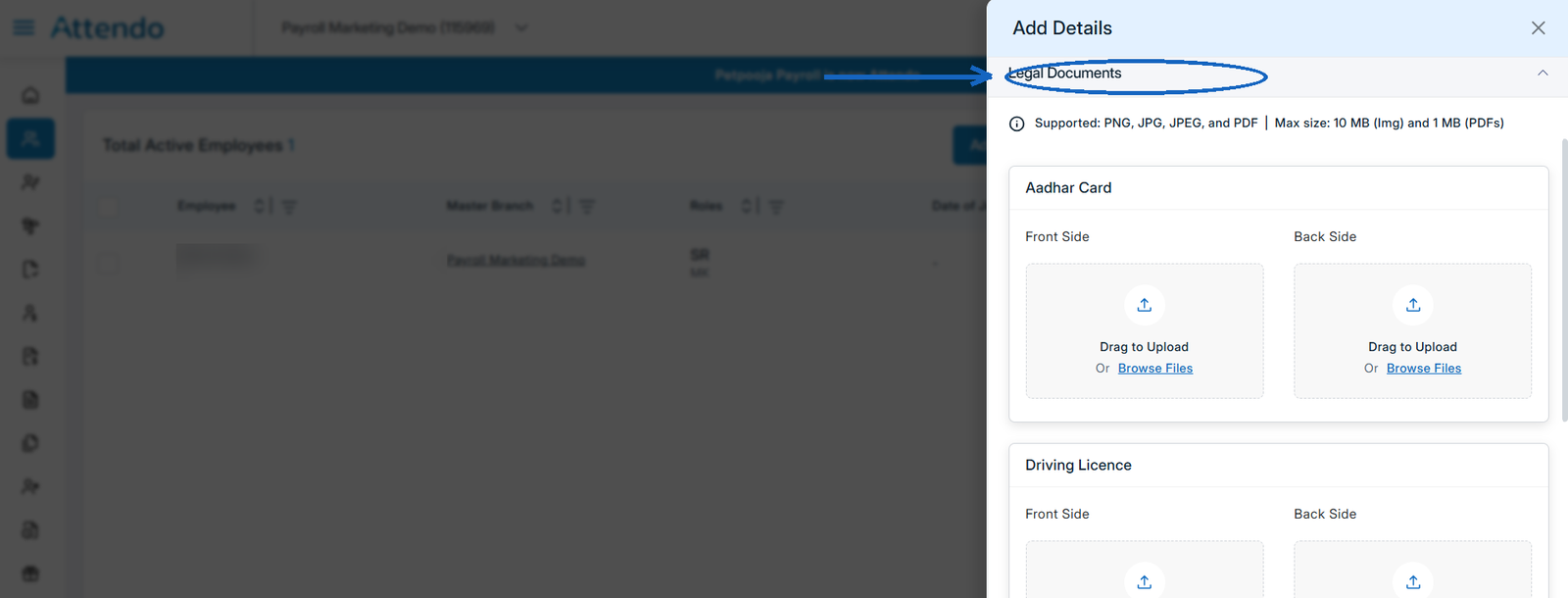
Upload scanned copies or photos of:
- Aadhaar Card
- PAN Card
- Driving Licence (if applicable)
- Passport-size Photo
Why it matters:
Uploading these documents fulfills KYC and compliance requirements. The system stores them securely for easy retrieval during audits, background verification, or statutory checks.
Pro tip: Encourage employees to provide clear, readable document scans. Blurry or cropped uploads may fail verification later.
(e) Emergency Contact Information
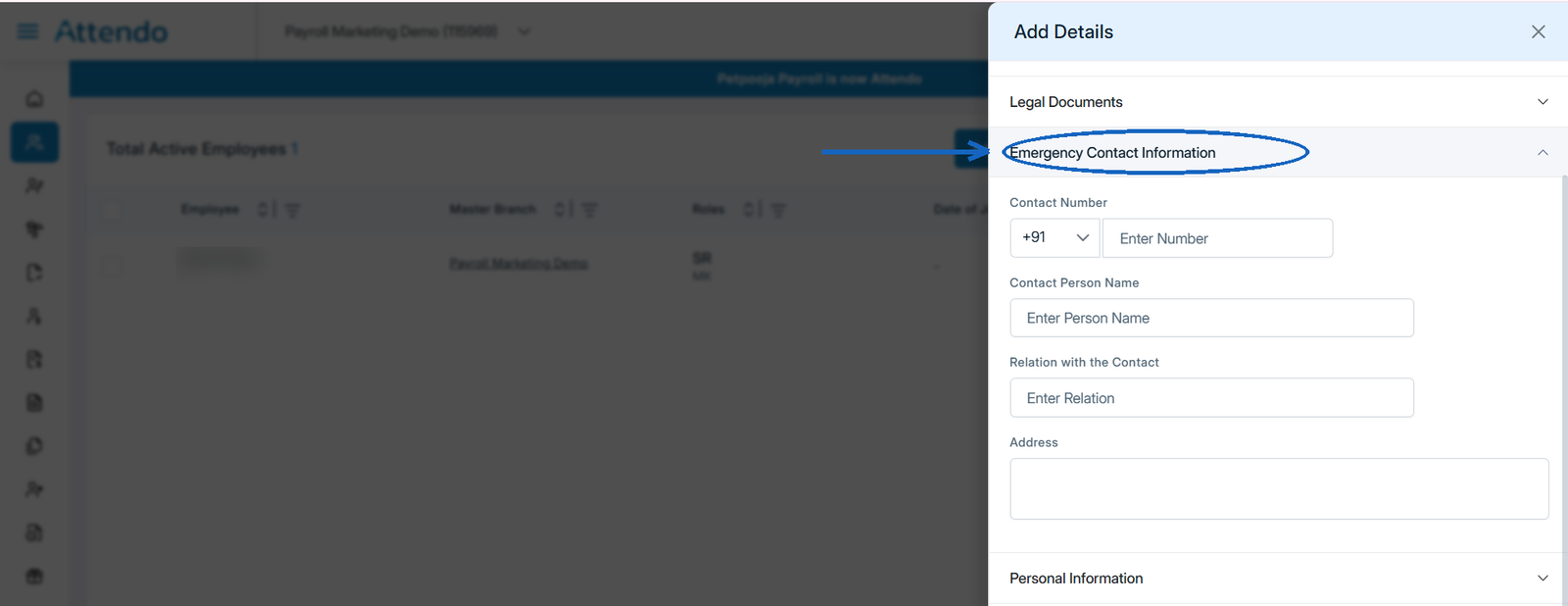
Every employee file should have an emergency contact for safety and HR compliance.
Record:
- Contact Name
- Relationship
- Mobile Number
- Address
Why it matters:
In case of emergencies or health incidents, having up-to-date contacts ensures quick response and responsible record-keeping.
(f) Personal Information
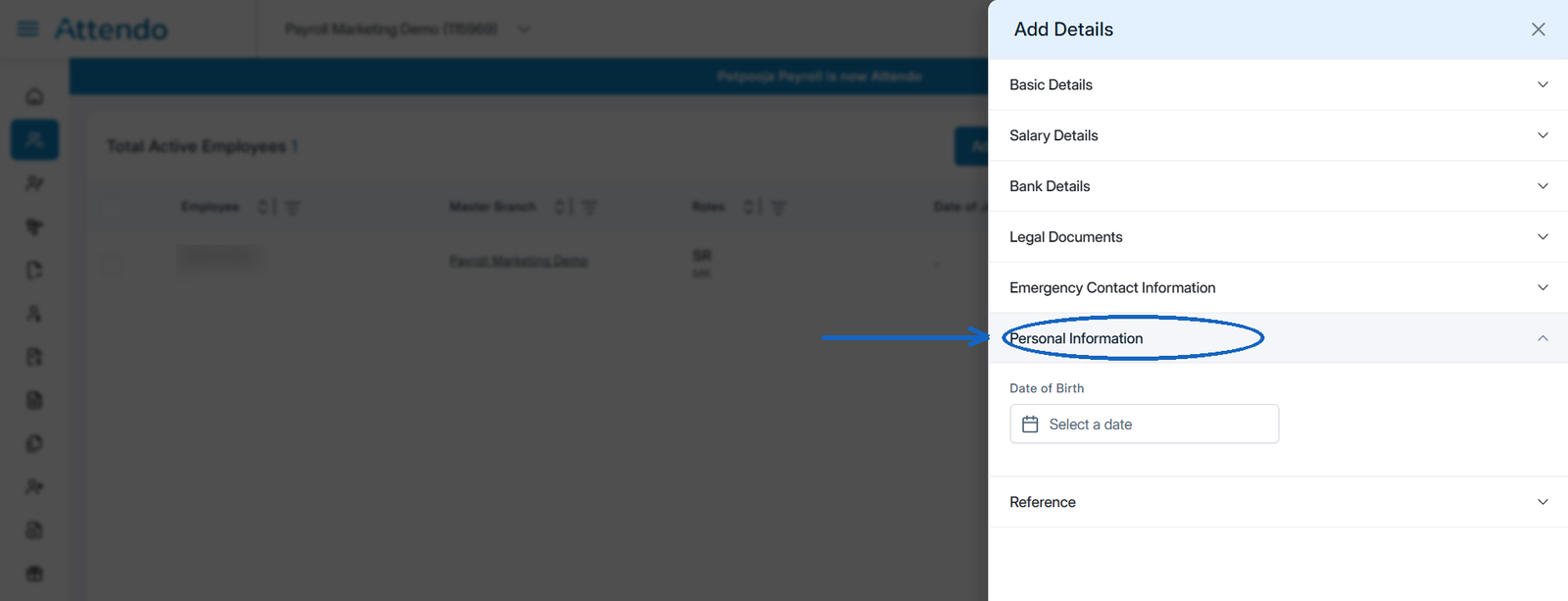
Here you add:
- Date of Birth (DOB)
Why it matters:
This field connects to other HR modules: benefits eligibility, gratuity calculations and leave accruals all depend on it.
Attendo also uses DOB to manage birthday notifications and work-anniversary reminders.
(g) Reference
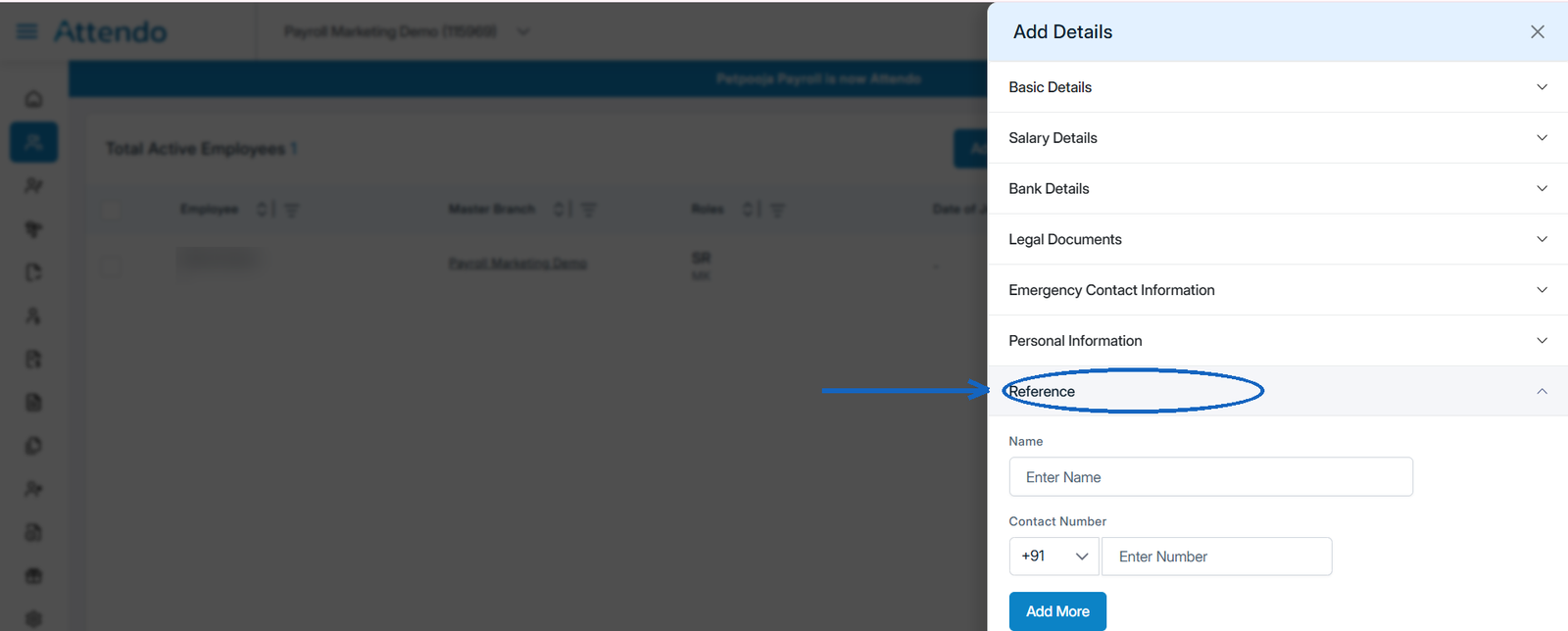
Add internal or external references along with contact details.
Why it matters:
References make verification easy for HR teams, especially in growing organizations. They can also help when transferring employees between departments or branches.
Step 4: Save & Activate the Employee
Once all sections are filled, click Save & Activate.
The employee is instantly added to your payroll system. Their information flows automatically into attendance, compliance, and salary-processing modules.
Real-time advantage:
There’s no waiting period. The moment you click “Activate,” payroll calculations, leave tracking, and statutory deductions (PF, ESIC, TDS) are enabled for that employee.
Pro Tips for HR Teams
- Keep naming formats consistent across departments and designations.
- Verify IFSC & UAN numbers before hitting save.
- Upload all mandatory legal docs for compliance.
- Use bulk upload when onboarding multiple new joiners at once.
- Set a review checklist for each HR manager helps standardize the process and reduce omissions.
Key Benefits
Why hundreds of HR teams trust Attendo:
- Onboard new staff in 60 seconds:- the fastest setup in the industry.
- Auto-compliance ready:- PF, ESIC, TDS calculations start immediately.
- Instant salary credit setup:- payments directly sync with verified bank data.
- Real-time module sync:- attendance, leaves, and payroll stay aligned.
- Secure cloud storage:- all employee documents stored safely for audits.
These benefits mean less manual effort, fewer payroll errors, and more time for strategic HR work.
Conclusion
Employee onboarding doesn’t need to be complicated.
With Attendo, HR teams can create compliant employee profiles, upload documents, and activate payroll in under a minute without errors or rework.
Accuracy. Speed. Compliance.
That’s payroll onboarding made simple.
Frequently Asked Questions
Q1. What details are required for new employee onboarding in payroll?
Q2. How to ensure compliance while adding new employees?
Q3. Can I import multiple new joiners at once?
Q4. Does Attendo auto-calculate PF & ESIC?
Related Articles You May Like
How Half Day Leave Works, and What It Costs
Most guides treat half day leave as a fixed entitlement with fixed rules. It is not one. Here is what the codes actually settle, what your own policy has to, and how much money sits on the difference.
Ashwiniba Vaghela
HR & Payroll Experts

What Replaced the Contract Labour Act, and What You Must Do
Repealed in November 2025, and what replaced it asks more of you, not less. Work that runs past 120 days stops being intermittent, the licence caps how many people a contractor may supply, and the welfare bill splits in a way few businesses have priced.
Ashwiniba Vaghela
HR & Payroll Experts

Code on Wages Rules 2026, and Who Must Follow Them
They bind one narrow group of employers and nobody else. But every state is now drafting from them, so the eight-hour day, the ten-day ceiling and the Form V payslip are worth reading whoever you are.
Ashwiniba Vaghela
HR & Payroll Experts
Probation Period Rules in India, and the New Six-Month Term
Probation has a stated length again: six months, extendable by three, from 8 May 2026. Who that binds, who still writes their own number, and why PF and ESI never paused for probation at all.
Avani Joshi
HR & Payroll Experts